How to Download YouTube Videos (2026 Guide)
The easiest way to download YouTube videos is to use an online tool like omnifetch.co. No software to install, no browser extensions, and no account needed. Just copy the video URL, paste it, and download. This guide walks you through every step.
Ready to download? Go to the YouTube Video Downloader and paste your link now. For audio only, use the YouTube to MP3 Converter.
Step-by-Step: Download Any YouTube Video
Step 1: Copy the YouTube Video URL
On desktop: Open the YouTube video you want to download. Click the address bar in your browser to select the full URL, then press Ctrl+C (or Cmd+C on Mac) to copy it. The URL typically looks like https://www.youtube.com/watch?v=VIDEO_ID.
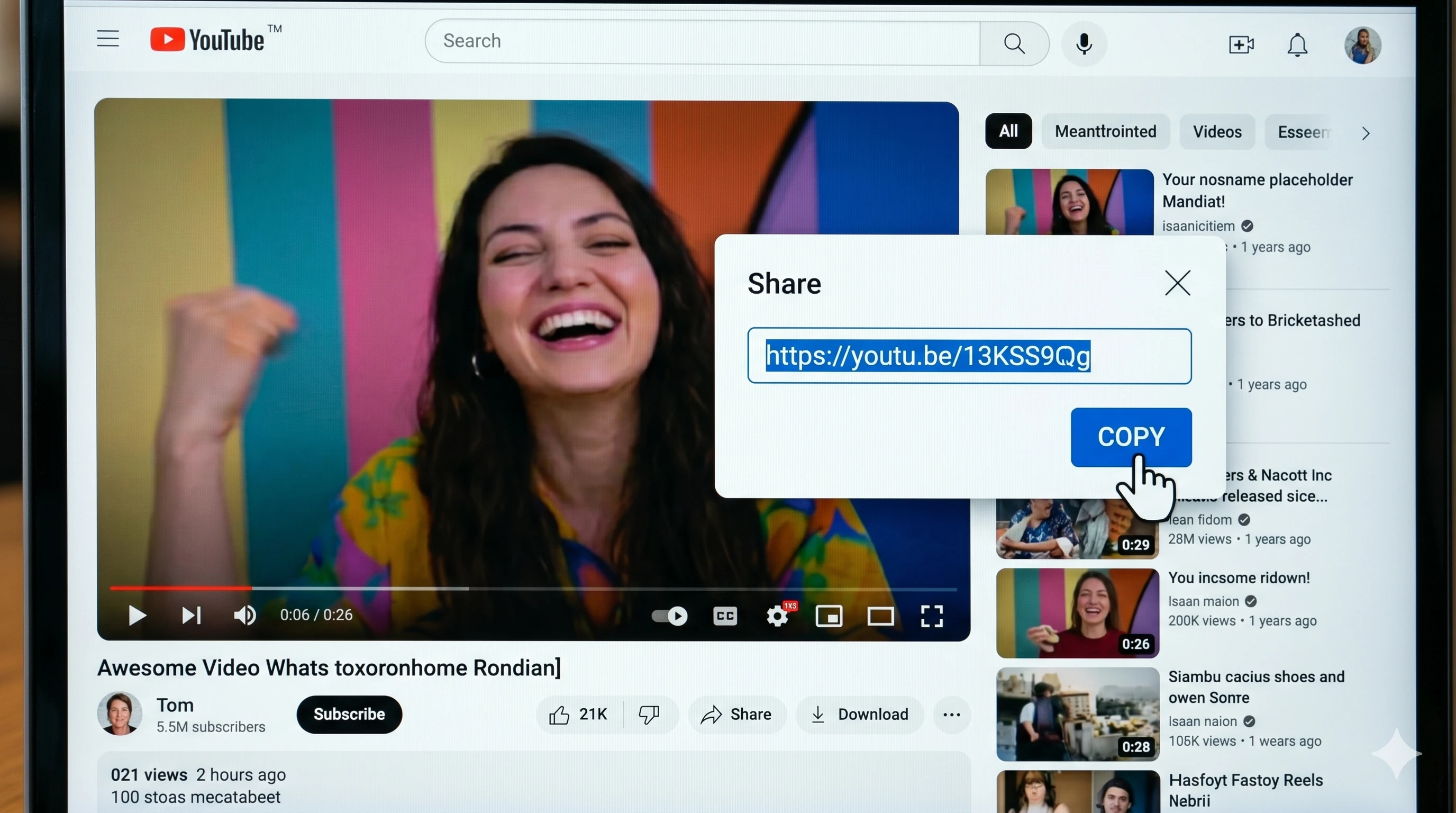
On mobile: Open the YouTube app, find the video, tap the Share button, and select Copy link. This gives you a short URL like https://youtu.be/VIDEO_ID, which works perfectly.
Step 2: Paste the URL and Download
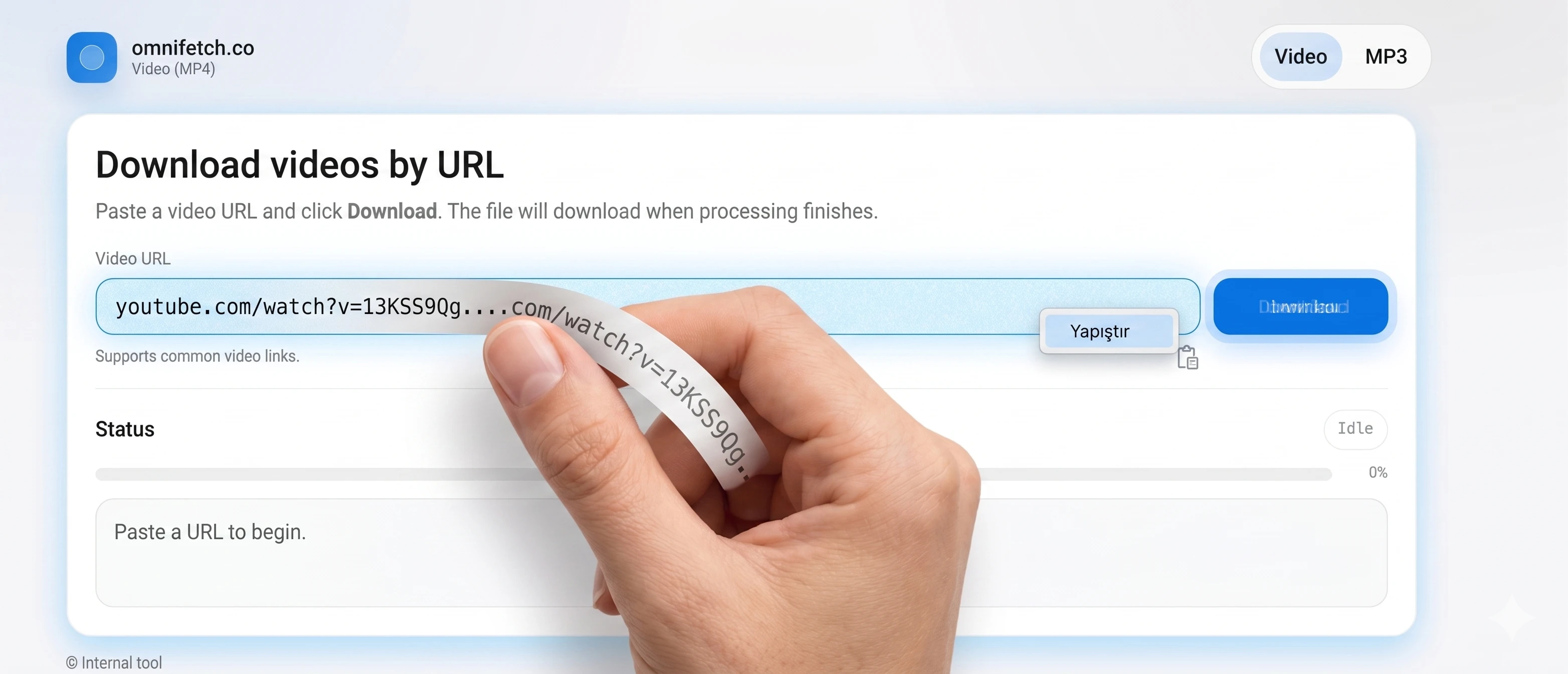
Go to the omnifetch.co Video Downloader. Paste the copied URL into the input field and click Download MP4. The tool immediately starts processing the video. You'll see a progress bar while the file is being prepared.
Step 3: Save the Video File
When processing completes, your browser automatically downloads the MP4 file. On most browsers, you'll find it in your Downloads folder. The file is ready to play on any device or media player that supports MP4 (which is virtually all of them).
Tips for Better Downloads
- Use the full URL - Including
https://ensures the tool can identify the video correctly. - Avoid playlist URLs - If the URL contains
&list=, you may be copying a playlist link instead of a single video. Open the video individually first. - Check video accessibility - Private, age-restricted, or geo-blocked videos may not be downloadable. Make sure the video plays normally in your browser.
- Need audio only? - Use the MP3 converter instead to save just the audio track.
Need help copying the URL correctly? See our companion guide: How to paste a YouTube link correctly.