How to paste an Instagram link (so it works)
If an Instagram download fails, it’s often because the copied link isn’t a direct video URL (or the post is private/restricted). Use this guide to copy a clean link for Reels or video posts and paste it into the tool.
Also useful: How to install Instagram videos (download your own).
Step-by-step: copy and paste the correct Instagram URL
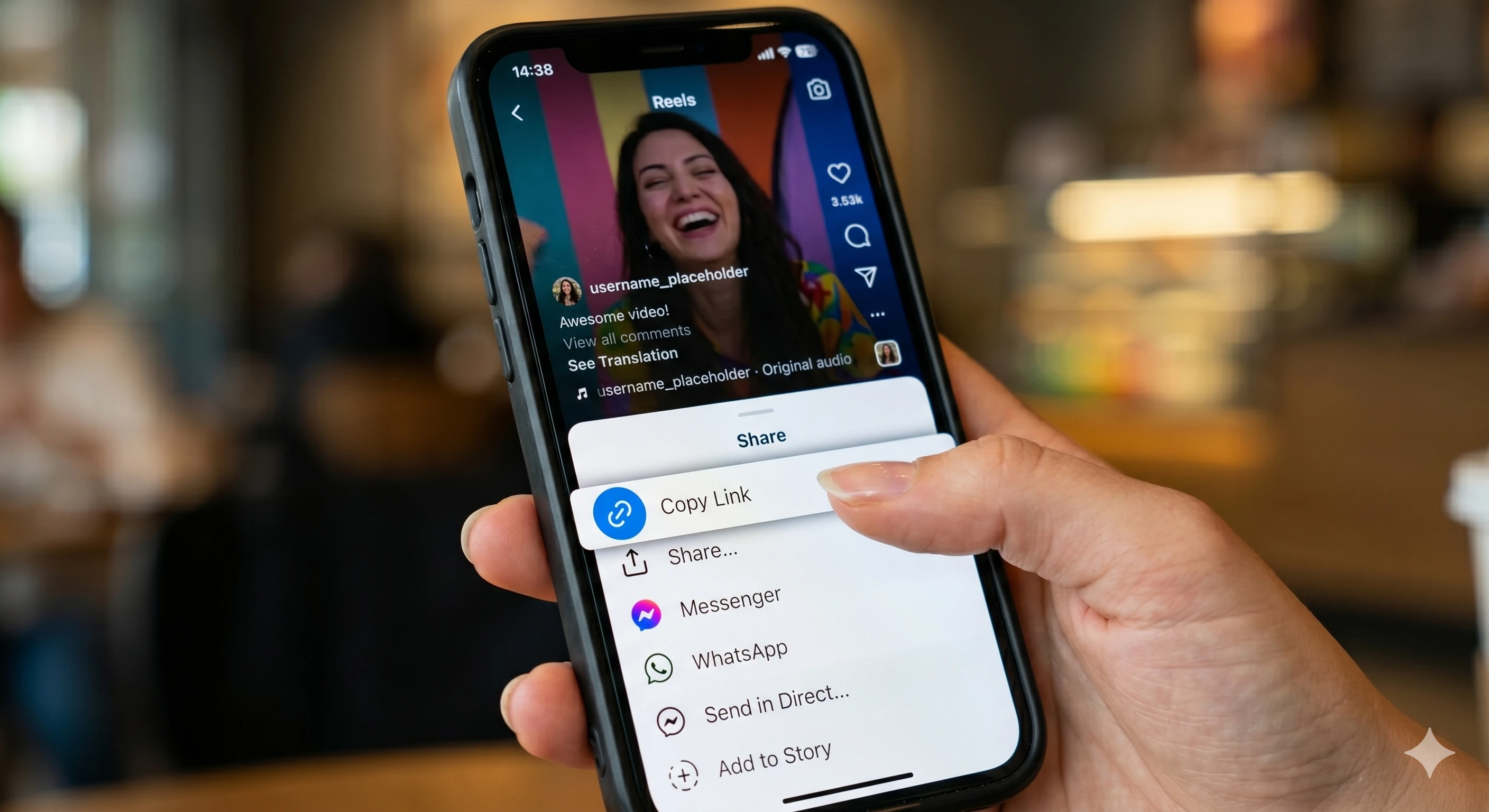
On mobile (Instagram app): open the Reel or video post, tap the Share icon, then choose Copy link. You should now have a URL that opens the same Reel/post in a browser. If you accidentally copied a profile link or a story share link, go back and copy again from the specific video.
On desktop: open the Reel or post in your browser and copy the address bar URL. Reels commonly
use paths like /reel/…, while posts can use /p/…. Either can work as long as the post is
accessible and the URL points to the content you want.
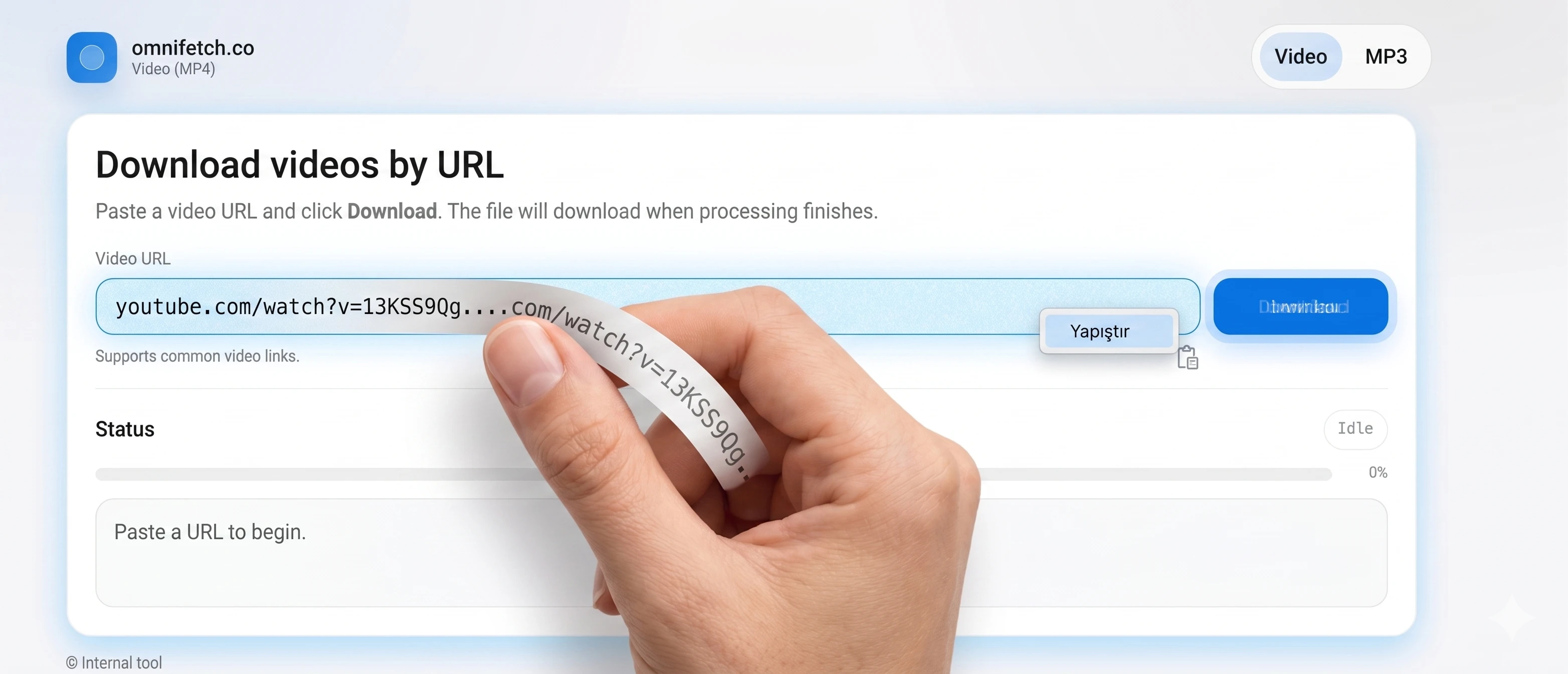
Now paste: go to the Video Downloader, paste the URL, and click Download. If you only need audio, use MP3.
If it still fails, check access. Private accounts, removed posts, or content that requires login/age checks can block automated downloads. A quick sanity test is to open the link in a private/incognito browser window: if it can’t be accessed there, a server-side downloader usually can’t access it either.